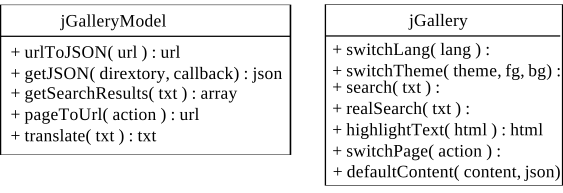
To know when an API has been loaded, use the $script API as follows:
$script("http://domain/foo.js", "foo", function() {
   // code that will be executed once foo.js has been loaded
   // this function is optional, you can call $script with only 2 arguments
});
$script.loaded(['foo', 'jquery'], function() {
   // code that will get executed once foo and jquery have been loaded
});
Paths, thumbnails, jsons
cache.json json containing the metadata of the index, click here to see an example (content will appear bellow the list of files)
cache.json json containing the metadata of directoryX, click here to see an example (content will appear bellow the list of files)
picX_r.jpg main thumbnail for picX; size configured in the admin
picX_b.jpg big thumbnail, width=350px, height depends on the original height
picX_c.jpg crop thumbnail, 200px*150px
picX_m.jpg small thumbnail, width=150px, height depends on the original height
mygpx.gpx
picX.jpg
vid.ogv
vid.mp4 vid.ogv and vid.mp4 are the same video with different codecs
vid2.ogv
// See bellow for the description of the fields

//    /cache/json/cache.json, the cache.json of the index of the gallery:
{
  "dirs":[{"ID":0, "url":"directoryX", "thumbs":['picX_m.jpg'], "descr":"dir descr", starred:false}],
}

//    /cache/json/directoryX/cache.json, the cache.json of directoryX:
{
  "dirs":[],
  "pics":[{"url":"picX.jpg", "original":true}],
  "vids":[{"url":["vid.mp4", "vid.ogv"]}, {"url":["vid2.ogv"]}],
  "gpx":["pics/directoryX/mygpx.gpx"],
  "gpxtype":"terrain",
  "descr":"dir descr",
}

// Format description
// All variables named foo* may be undefined
{
  dirs*:[                                                              // list of subdirectories
    {
       ID:<display order>,                                             // e.g., 0
       url:<name of the directory>,                                    // e.g., 'subdirdirX'
       thumbs:[<name of thumbs>],                                      // e.g., ['index_m.jpg', '0_m.jpg']
                                                                       // You can replace _m with _c or _b in your code
                                                                       // to access thumbnails of different size
       descr:<description>,                                            // e.g., 'foobar'
       starred:<true if the directory should be highlighted>,
    }
  ],
  pics*:[                                                              // list of pictures
    {
       url:<name of the picture>,                                      // e.g., foo.jpg
       fullpath*:<path of the picture (if undefined, path=path of the gallery)>
       original:true if the original picture is bigger than the _r thumbnail
    }
  ],
  vids*:[                                                              // list of videos
    {
      url:[<nameS of the video>]                                       // e.g., [foo.mp4, foo.ogv]
    }                                                                  // /!\ videos with same basename but different
                                                                       // extensions are regrouped!
  ],
  gpx*:[<PATH of the gpx files of the gallery>] or [],
  gpxtype*:<map type, e.g., "terrain", "satellite" or "roadmap">
  descr*:<description of the gallery>
}
Create a theme
If you start from an existing theme, creating your own theme might take you less than 5 minutes!
Create a folder in the /themes directory of your EnVadrouille gallery with two files: main.js and main.css.
Once you have created these files with their minimal content (see bellow), update the administration options to add your theme to the gallery.
Go in the gallery and enjoy. If you want to update your theme, simply edit the .css and .js files (no need to go in the administration).
Click on the files bellow to show the minimal content of the css and js files.
This rules are used by the administration to determine the background and foreground colors of your theme. No other rule is enforced. To know which css rules to create, you can either start from an existing theme or look inside the main EnVadrouille /index.html file to find the templates used by the gallery.
The gallery will work with this single rule (but won't look nice...). The only feature that won't show up are maps because the map container has a default height of 0px. To show the maps, without any decoration, add these rules:
.gps {
   position:relative;
}
.gpscanvas {
   height:320px;
}
.gpscanvasbig {
   height:800px;
}
.gpschart {
   display:none; /* chart is hidden by default */
   height:200px;
   width:100%;
}
.gpsmapwrapper {
   position:relative;
}
.gpsadvanced {
   display:none; /* button to show charts will be
                   displayed automatically when
                   the gpx has been loaded */
   position:absolute;
   bottom:0px;
   left:50%;
   margin-left:-60px;
   cursor:pointer;
   display:none;
}
.gpsadvanced:before {
   content:"STATS";
}
.gpsbigger {
   display:none;
   position:absolute;
   bottom:0px;
   left:50%;
   cursor:pointer;
}
.gpsbigger:before {
   content:"BIGGERMAP";
}
A theme must implement 8 JavaScript function. Most of these functions are called with a json argument described in section "1.2 Paths, thumbnails, jsons" (click on the link next to the 'cache.json' files). You should not alter this json because it might be used internally or by other themes.
The simplest way to create this JavaScript file is to start from an existing theme.
var myTheme = {
   /*
    * Boolean to tell whether you want the gallery to perform smooth
    * transition between pages (fadeIn/fadeOut)
    */
   animateContent : false,

   /*
   * Called on all pages, with or without an argument. May be used to display a breadcrumb or anything you want.
   * @json: /!\ the json being displayed or *undefined* when performing a search
   */
   showHeader:function(json) {
      // Simplest code: do nothing.
   },

   /*
   * Called multiple times on most pages to display content.
   * @content the content to display (e.g., 'dirs', 'pics', 'vids', 'gpx', ...)
   * @json the json being displayed
   */
   showContent:function(content, json) {
      switch(content) {
        case 'dirs': return myTheme.showDirs(json);
        case 'pics': return myTheme.showPics(json);
        case 'vids': return myTheme.showVids(json);
        default: return jGallery.defaultContent(content, json);
      }
   },

   /*
   * Called to display a search result
   * @dataFull: the galleries that match all searched keywords
   * @dataPartial: the galleries that some of the searched keywords
   * @keywords: the searched keywords
   */
   showSearch:function(dataFull, dataPartial, keywords) {
     if(dataFull.length) {
       myTheme.showSearchResults(dataFull, keywords);
     }
     if(dataPartial.length) {
       myTheme.showSearchResults(dataPartial, keywords);
     }
   },
   showSearchResults:function(data, keywords) {
     if(!data)
       return;

     for (var i in data) {
       var res = {};
       res.ID = data[i].ID;
       res.url = data[i].url;
       res.descr = data[i].descr;
       res.starred = data[i].starred;
       res.completeurl = data[i].url;

       res.title = jGallery.highlightText(data[i].url, keywords);
       res.thumb = data[i].url+'/'+data[i].thumbs[0];

       $("#dirTpl").tmpl(res).appendTo('#search_results');
       $('#dir'+res.ID).click({url:res.url}, function(ev) {
         ev.preventDefault();
         jGallery.switchPage(ev.data.url);
       });
     }
   },

   /*
    * Called to display an error.
    * @data: use data.Error to get the error message
    */
   showError:function(data) {
     $("#errorTpl").tmpl(data).appendTo('#content');
   },

   /*
    * Called before displaying the first page and when the user
    * changes the gallery language.
    * All text in <... class="translate"></...> markups will
    * be automatically translated for you.
    * @lang: 'en', 'fr', ...
    */
   changeThemeLang:function(lang) {
     if(lang == 'fr') {
       config.tr['Hello'] = 'Salut';
       // <span class="translate">Hello</span> will be shown as "Salut" in French
     }
   },

   init:function() {
      // Called once, when the theme is loaded
   },
   clean:function() {
      // Called on every page change
   },
};
// your theme must be in /theme/mytheme
config.loadedThemes['mytheme'] = myTheme;
You are free to handle (or not to handle) any of the content that is passed as an argument to showContent. A default function is provided for 'gpx' but you should handle the 'dirs', 'pics' and 'vids' contents. Here is an example of functions that you may use to show galleries, pictures and videos:
var myTheme = {

   // ... functions declared before

   /*
   * Called to display galleries.
   * @json: the json being displayed; galleries are in the json.dirs field.
   */
   showDirs:function(json) {
       if(!json.dirs)
           return;

     var dirs = [];
     var dirUrl = jGalleryModel.pageToUrl(json.realurl);
     for (var i in json.dirs) {
         dirs[i] = {
             ID:i,
             completeurl:json.dirs[i].completeurl || (dirUrl+json.dirs[i].url),
             thumb:json.dirs[i].thumb || (dirUrl+json.dirs[i].url+'/'+json.dirs[i].thumbs[0]),
             title:json.dirs[i].title || json.dirs[i].url,
             descr:json.dirs[i].descr,
         };
         /* you may also want to set .day , .month, .year and .starred  */
         /* you can also specify a .separator (html string) that will show before the directory */
         /* see the dirTpl template in /index.html to get the list of variables used by the template */

         $("#dirTpl").tmpl(dirs[i]).appendTo('#content');

         $('#dir'+dirs[i].ID).css('opacity', 1);
         $('#dir'+dirs[i].ID+' img').css('opacity', 1);
         $('#dir'+dirs[i].ID).click({url:json.dirs[i].url}, function(ev) {
           ev.preventDefault();
           jGallery.switchPage(dirUrl+ev.data.url);
         });
     }
   },

   /*
   * Called to display pictures
   * @json: the json being displayed; pictures are in the json.pics field.
   */
   showPics:function(json) {
     if(!json.pics)
       return;

     var pics = [];
     var dirUrl = jGalleryModel.pageToUrl(json.realurl);
     for (var i in json.pics) {
       pics[i] = {
         ID:i,
         url:(json.pics[i].fullpath?json.pics[i].fullpath:dirUrl),
         big:json.pics[i].url,
         thumb:json.pics[i].url.replace(/\.([^\.]+)$/, "_c.$1"), //pic.jpg -> pic_c.jpg
         original:json.pics[i].original
       };
       $("#picTpl").tmpl(pics[i]).appendTo('#content');
       $('#pic'+i+' img').css('opacity', 1);
     }
   },

   /*
   * Called to display videos
   * @json: the json being displayed; videos are in the json.vids field.
   */
   showVids:function(json) {
     if(!json.vids)
       return;

     var dirUrl = jGalleryModel.pageToUrl(json.realurl);
     var vids = [];
     for (var i in json.vids) {
       vids[i] = {
         ID:i,
         vid:json.vids[i].url,
         path:dirUrl,
         h:360,
         w:640
       };
       $("#vidTpl").tmpl(vids[i]).appendTo('#content');
     }
   },
};
Create a plugin
Denomination
The admininistration is composed of a set of plugins. Each view of the administration (index, option, face recognition, etc.) is a plugin. Some views in the gallery (e.g., face search) are also plugins. Some types of files that are handled by the gallery (e.g., gpx files) are also handled by plugins. We call plugins that display a new view "view plugins" and plugins that handle new type of files "content plugins". Both type of plugins can export data/functions to the main gallery.
Note: a plugin can be both a view and a content plugin at the same time, if you want to do real complex things.
Content Plugins
Philosophy
Content plugins are used to handle content that the gallery does not know how to handle by itself, e.g., new type of files. A content plugin can add information in the main administration page (e.g., the gpx chooser is part of a content plugin) and in the jsons generated by the gallery. It can also add javascript in the main gallery to display the new content to the user (e.g., show a map).
The gallery works as follow: when displaying a gallery, for each registered content plugin, it checks if the theme can show the content and then, if the theme does not know how to show the content, it calls the plugin's default function. A content plugin should only be used to handle new contents that are displayed in the galleries. To create new views (e.g., face search), you should use a view plugin.
Handling .hello files
Creating a plugin to enhance the gallery is very simple. It only requires the creation of 1 php file. For a more complete example, see the gpx plugin that is shipped with the gallery.
Create the index file with the content described bellow.
Activate myplugin in the administration options (you need to do that only once)
Create a gallery with a .hello file in it and update the gallery in the main page of the administration.
Go in the gallery. It should show a popup saying the gallery contains a .hello file
The index.php file mainly does 2 things: it exports a function to the gallery that will alert the user that a gallery contains a .hello file and it writes a field in .json files used by the gallery.
/*
 * Do not forget to activate the plugin in the administration before testing!
 * Then update a directory that contains a .hello file and go into the gallery. It will show an alert box.
 * WARNING: the name of the class is important! Make sure that if your plugin is in pages/myplugin/, then the class is named Pages_Myplugin_Index!
 */
class Pages_Myplugin_Index {
   public static $description = "Plugin";
   public static $isOptional = true;
   public static $showOnMenu = false;

   public static $userContentName = "hello";   // The name of what I will show
                                               // Will call showContent('hello', json) in the gallery
   public static $userContentDefaultPosition = 1; // the gallery shows elements in this order by default:
                                                  // galeries, pictures, videos. Insert at position 1 to show
                                                  // galeries, hello, pictures and videos.

    /* Export one function to the gallery.
    * Note that we could have put the code in a file and used the getUserScript function
    * to make the gallery load the file (recommended if you have a lot of code to load),
    *  see 2nd example
    */
   static public function getUserFunctions() {
       return array(
          'config.contentPlugins["hello"] = function(json) {
               if(json.hashello) // written by the writeJSON function
                  alert("There is an hello file in this gallery!");
           }'
       );
   }

   /* Called when the gallery writes a JSON. Add our field. */
   public static function writeJSON($args) {
      $json = &$args['json'];

      $old_json = $args['old_json'];
      $files = $old_json->masterDirectory->getFiles();
      foreach($files as $f) {
         if($f->extension == 'hello') {
            $json['hashello'] = true;
         }
      }
   }
};
A more complex example
In this example, we show how to show new content in the main administration page (e.g., a textbox that will appear in each directory "update box"). Showing content in the main administration page requires a template and a javascript file to fill the template. We start from the .hello plugin described bellow. We also add js files that will contain the translations of various elements of the plugin.
Compared to the previous example, the index also exports a template to the main administration page.
/*
 * Do not forget to activate the plugin in the administration before testing!
 * WARNING: the name of the class is important! Make sure that if your plugin is in pages/myplugin/, then the class is named Pages_Myplugin_Index!
 */
class Pages_Myplugin_Index {
   public static $description = "Plugin";
   public static $isOptional = true;
   public static $showOnMenu = false;
   public static $userContentName = "hello";
   public static $userContentDefaultPosition = 1;

   /*
    * We export a tpl file in the main administration page.
    * The tpl will be filled by the index.myplugin.js file.
    */
   static public function getTpl() {
      $template = new liteTemplate();
      $template->file('pages/myplugin/tpl/index.tpl');
      return $template->returnTpl();
   }

   // this will be exported in the gallery.
   static public function getUserFunctions() {
       return array(
          'config.contentPlugins["hello"] = function(json) {
               if(json.hashello) // written by the writeJSON function
                  alert("You wrote "+json.hashello+" in the administration");
           }'
       );
   }

   public static function writeJSON($args) {
      $json = &$args['json'];
      $old_json = $args['old_json'];
      $old_content = $old_json->get();

      // only write something in the json for the directory that is being updated
      if($old_json->masterDirectory->isUpdated) {
         if(isset($old_content['hashello'])
            $json['hashello'] = $old_content['hashello'];
         return;
      }

      // here we set the json.hashello field if something has been written in the text input of our plugin of the directory that is being updated
      // see main.js file to see where myplugin_post_var is set.
      if(Controller::getParameter('myplugin_post_var', null))
         $json['hashello'] =  Controller::getParameter('myplugin_post_var', null);
   }
};
A content plugin that wants to interact with the administration index must implement multiple functions. These functions are used to modify the parameters that are sent to PHP when writing json files, to add DOM elements inside the directories' boxes, etc.
var MyPlugin = {
   //called before writing the json of directory 'dir'
   //id is the unique id that is passed to your plugin template file;
   //it can be used to retrieve values of inputs (or other DOM elements) of the template. See next function.
   //cb is a callback that MUST be called once we are done.
   preWriteJson:function(id, dir, cb) {
      cb(); // we do nothing here
   },

   // called when writing the json. Put any parameter that you want to be sent to PHP.
   getJsonParams:function(id, dir) {
      return { myplugin_post_var:$('#plug_'+id).val() }; // add the value of our input field
   },

   // the json has been written. Nothing else remains to be done
   postWriteJson:function(id, dir, cb) {
      cb();
   },

   // the template has been added. Now you can configure what happens when
   // the administrator interacts with your buttons/inputs
   addButtonActions:function(id, dir, data) {
      //nothing
   },

   // the gallery provides an utility function that watches changes of content
   // on inputs and checkboxes. When the content changes, the directory theme changes
   // (a warning sign that informs the administrator that she must validate her changes
   // is added for example). In this function you can specify the DOM elements that
   // should be watched.
   getHooks:function(dir, id) {
      return [$('#plug_'+id)];
   },

   // return what you want to show in the box of a directory that has not been added
   // to the gallery
   getUnparsedDirTpl:function(dir, div, id) {
      var tpl = $("#myplugTpl").tmpl({id:id});
      return tpl.html();
   },

   // return what you want to show in the box of a directory that has been added
   // to the gallery
   getParsedDirTpl:function(dir, id, json) {
      // we reuse the json.hashello field that has been set by PHP when the
      // directory was first added
      return $("#myplugTpl").tmpl({id:id,hello:json.hashello}).html();
   },
};
plugins.push(MyPlugin);
The scripts/lang/index_{language}.js files will be exported automatically to the main administration page. They must contain translations for translatable elements of your template file.
The scripts/lang/option_{language}.js files will be exported automatically to the administration option page. We translate the "activate" checkbox for the plugin. Note that this file should also contains translation for possible options of your plugin.
known_sentences.concat({
   'myplugin_activated' : 'Activate my Plugin:',
});
View Plugins
Philosophy
A view plugin is used to
Display a new page in the administration (e.g., options).
Display a new page in the gallery (e.g., face search).
Views in the administration - Hello world
A view plugin is composed of multiple "actions" (functions): the mainAction that displays the template and multiple other fooAction that are called asynchronously (via AJAX calls). See bellow for a simple Hello World plugin to understand how to perform AJAX calls. The gallery provides convenient functions to perform AJAX calls. DO NOT TRY TO PERFORM AJAX CALLS BY HAND! Indeed, the gallery needs security variables in each AJAX calls that are used internally to prevent XSS attacks. If you perform an AJAX call without these variables, your call will be rejected by the gallery. So, stick with the galleries AJAX functions or make sure to add the security variables to your calls!
Here is a simple JS file that adds an action to the "Click me" text of the template.
$(document).ready(function() {
   var nclicks = 0;
   $('#hello').click(function() {
      var batch = new Batch(ParallelBatch, function(data) {
         // All actions in the batch have completed
         // In this example we only launch one action (foo_bar) but you may want to launch multiple actions
         // and get notified when they have all complete.
         // Notice the 'ParallelBatch' that will launch multiple actions in parallel (4 by default). Use
         // SequentialBatch for actions that must be executed sequentially (e.g., multiple actions touching the same file)
         // Note: Sequential and Parallel Batchs operate on a global level, i.e.,
         // var batch1 = new Batch(SequentialBatch);
         // var batch2 = new Batch(SequentialBatch);
         // ...
         // batch1.launch();
         // batch2.launch(); // will only execute once batch1 has completed its action(s).
      }, null);
      batch.get({action:'myplugin.foo_bar', clicks:++nclicks}, function(data) {
         // will call /pages/myplugin/index.php?action=foo_bar&clicks=nclicks&custom_security_variables
         // that will automatically execute the fooBarAction() function of the index.php file
         $('#res').append(data.foo);
      });
      batch.launch(); // Always call that after adding an action to a batch
   });
});
The administration uses the liteTemplate class to display templates from PHP. Alternatively you can also use the jQuery template plugin if you feel more comfortable displaying templates in JavaScript. Note that variables in liteTemplate are of the form {$VAR} whereas jQuery template plugin used ${var} (notice the emplacement of the $).
A plugin must contain an index.php file at its root. Here is a minimal php file that loads a template with a link that that performs an AJAX call.
 /* WARNING: the name of the class is important! Make sure that if your plugin is in pages/myplugin/, then the class is named Pages_Myplugin_Index! */
class Pages_Myplugin_Index {
   /* Description that will show up in the top menu and in the options; keep it short */
   public static $description = "Hello World";

   /* Can the plugin be deactivated? Should be true */
   public static $isOptional = true;

   /* Create a button on the top menu? True only if you want to display something in the administration */
   public static $showOnMenu = true;

   /*
    * Function called before calling any of the plugin action
    */
   public static function setupAutoload() {
   }

   /*
    * Function called by the administration options plugin
    * We have no option (see gpx plugin for an example of options)
    */
   static public function getOptions() {
      return array();
   }

   static public function mainAction() {
      $template = new liteTemplate();
      $template->showPage('index'); // Will show ./tpl/index.tpl
      $template->assign(array('CLICK' => 'Click me !'));
      $template->view();
   }

   static public function fooBarAction() {
      $clicks = Controller::getParameter('clicks');
      echo File_JSON::myjson_encode(array(
         "foo" => "Hello! You have clicked the link $clicks times!"
      ));
   }
};
Views in the gallery - Hello world
This plugin will create a new view in the gallery, that can be accessed via /yourgallery/#!myplugin. Note that if you want to do more complex things, you can overload the jGallery functions to put hooks where you want.
A plugin must contain an index.php file at its root. Here is a minimal php file that exports a js in the gallery.
 /* WARNING: the name of the class is important! Make sure that if your plugin is in pages/myplugin/, then the class is named Pages_Myplugin_Index! */
class Pages_Myplugin_Index {
   public static $description = "Hello World";
   public static $isOptional = true;
   public static $showOnMenu = false; // do not show up in the administration

   /*
    * Function called by the administration options plugin
    * We have no option (see gpx plugin for an example of options)
    */
   static public function getOptions() {
      return array();
   }

   /*
    * When the plugin is activated, the following file(s) will be loaded in the gallery
    */
   static public function getUserScripts() {
      return array('./admin/pages/myplugin/scripts/jgallery.myplugin.js');
   }
};
/*
 * jgallery.myplugin.js
 */
var MyPlugin = {
   // Called on each page change.
   // Ask the plugin if it wants to handle the current page
   want:function(action) {
      return action == "myplugin"; // only handle #!myplugin
   }

   // we said we wanted the page, now let's handle it!
   handle:function(action) {
      alert("Your are on page "+action);
   },

   // do various initialization routines and register the plugin
   init:function() {
      jGallery.plugins.push(MyPlugin);
   }
};
// inform the gallery that the file is loaded
config.pluginsInstances.push(FacePlugin);
PHP - Available classes and hacks
Available classes
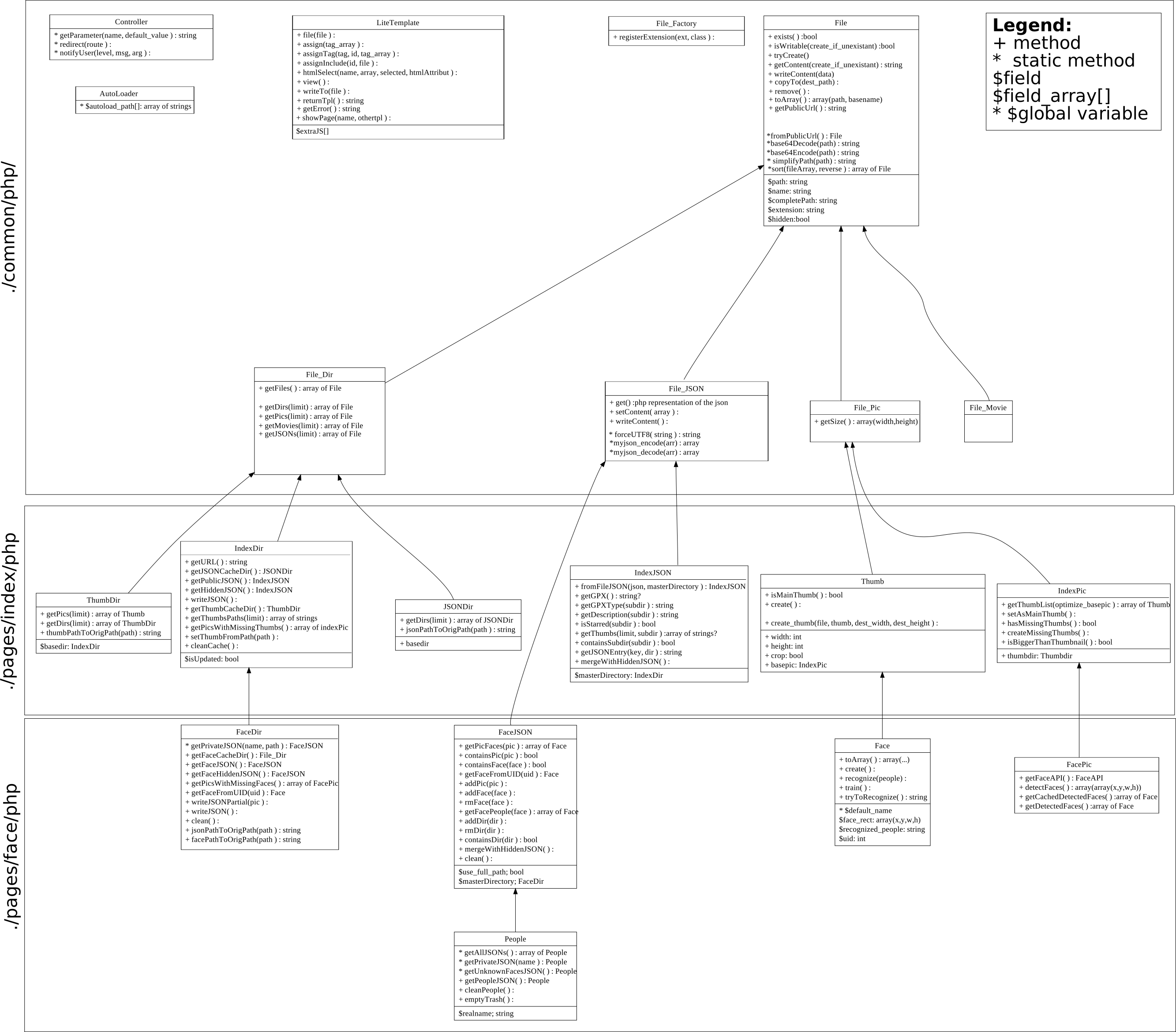
In the administration, you can use the following PHP classes:
In the gallery, you can use the following JS classes:
Files manipulation
The main task of the administration is to deal with files (pictures, json) and directories. The gallery provides cool abstractions to ease the most common operations on files and directories. We recommend that you use these abstractions. See here for the complete lists of classes that you may use in the gallery.
If these classes do not meet your needs, you can extend them and make the gallery use your own abstractions instead of the generic ones. For example, without any modifications, all png files are of type File_Pic. If you want all png files to be of type MyPic, here is how to do it:
// Create a file named mypic.php in pages/myplugin/php/ with
class MyPic extends File_Pic {
   public function __construct($path, $name = '') {
       parent::__construct($path, $name);
       // custom initialization
   }

   public function customFunction() { };
}

// and in you plugin index pages/myplugin/index.php:
class Pages_Myplugin_Index {
   public static function setupAutoload() {
      AutoLoader::$autoload_path[] = "./pages/myplugin/php/";
      File_Factory::registerExtension("png", "MyPic"); // all png files are of type MyPic!

      // Note: You can register the special extension "dir" for directories.
   }

   public static function mainAction() {
      $dir = new Dir('./path');
      $files = $dir->getPics();
      foreach($files as $file) {
         // all png files are of type MyPic
         if(strtolower($file->extension) === 'png')
            $file->customFunction(); // works
      }
   }
}
Use multiple JS files in a view plugin
By default the gallery will look for a main.js file in the script directory of your plugin. You may want to inform the gallery that you want to load other js files as follows:
class Pages_Myplugin_Index {
   // ...

   static public function mainAction() {
      $template = new liteTemplate();
      $template->extraJS[] = './pages/myplugin/scripts/extrajs.js';
      $template->showPage('index'); //uses extraJS
      $template->view();
   }
}
Translation in the administration
The gallery will also automatically try to load translation files for your plugins. You need exactly two files for each language: one file that will be used to render the content of your templates and one file that will be used for the description of your plugin options. All text that is in a DOM element with a class "translate" will be translated (that works for inputs and selects too).
E.g., <span class="translate">test_translate</span> will look for a way to translate test_translate in the current administration language.
Translation in the administration is way more powerful than in the gallery and you may want to use function or special formatters to translate the content of your divs. See bellow. Sample translation files for a plugin:
/* option_en.js This file will be used by the option */
known_sentences.concat({
   'Hello World':'Hello World plugin',
   'my_option':'My option',
};
/* option_fr.js This file will be used by the option */
known_sentences.concat({
   'Hello World':'Plugin Hello World',
   'my_option':'Mon option',
};
en.js file, fr.js file contain the same hash, but different translations:
/* en.js This file will be used by your scripts */
known_sentences.concat({
   't1':'Translation 1',
   't2':'{0} done / {1} total',
   't3':function(args) {
      return 'Translation 3: ' + args[0];
   },
};
/* fr.js This file will be used by your scripts */
known_sentences.concat({
   't1':'Traduction 1',
   't2':'{0} fait / {1}',
   't3':function(args) {
      return 'Traduction 3: ' + args[0];
   },
};
To translate in the adminstration:
// Elements with a class="translate" will be translated automatically after the page load.
// However if you add elements later on (e.g., after receiving an AJAX response), you must
// inform the gallery that it must perform new translations. This can be done in a single line:
$(".translate").translate();

// If you want to use arguments in your translations, you have to put the translated text directly
// in your templates as follows:
$("...").append(... + t('t2', [ 0, 1 ]);
$("...").append(... + t('t3', [ 0, 1, 2, 3, ... ]);
Information popups in the administration
Another great feature of the administration is the information system. You can either inform the user of a success, warn him or report an error. Note that if an AJAX call fails, an error with detailed information will show up automatically.
function inform(tag, type, add, params, div);

// E.g., the following will show a "success" div on top of the page containing
// the translation of t2 (e.g., "done 0 / 1" here, click on the "en.js" file in the previous subsection to know why).
// true is used to say that you want to add the div (false will remove the div)
// By default the div show on top of the page but you can specify the container div using the div parameter
inform('t2', 'success', true, [0, 1]);
Complete examples
The gpx plugin is a good example of a content plugin. The face plugin is a good example of a view plugin. Both plugins are shipped with the gallery.